
Have you been asked to give a presentation?
Recently, I was asked to give a presentation on “Thriving in Digital Tech.” Although I regularly stand up in front of groups to teach, this invitation pushed me slightly outside my comfort zone.
In this post, I’ll walk you through the process I used to prepare—and what I learned along the way.
Step 1: Saying Yes (Eventually)
When I first saw the invitation, my instinct was to decline—or quietly pass it on to a colleague. However, after a bit of reflection (and a helpful conversation with that colleague), I put my big girl pants on and said yes.
That decision was followed by about two weeks of denial and procrastination. Despite having a clear plan—created with the help of my business coach, Lyndsey from Heads-Up Coaching—I avoided getting started.
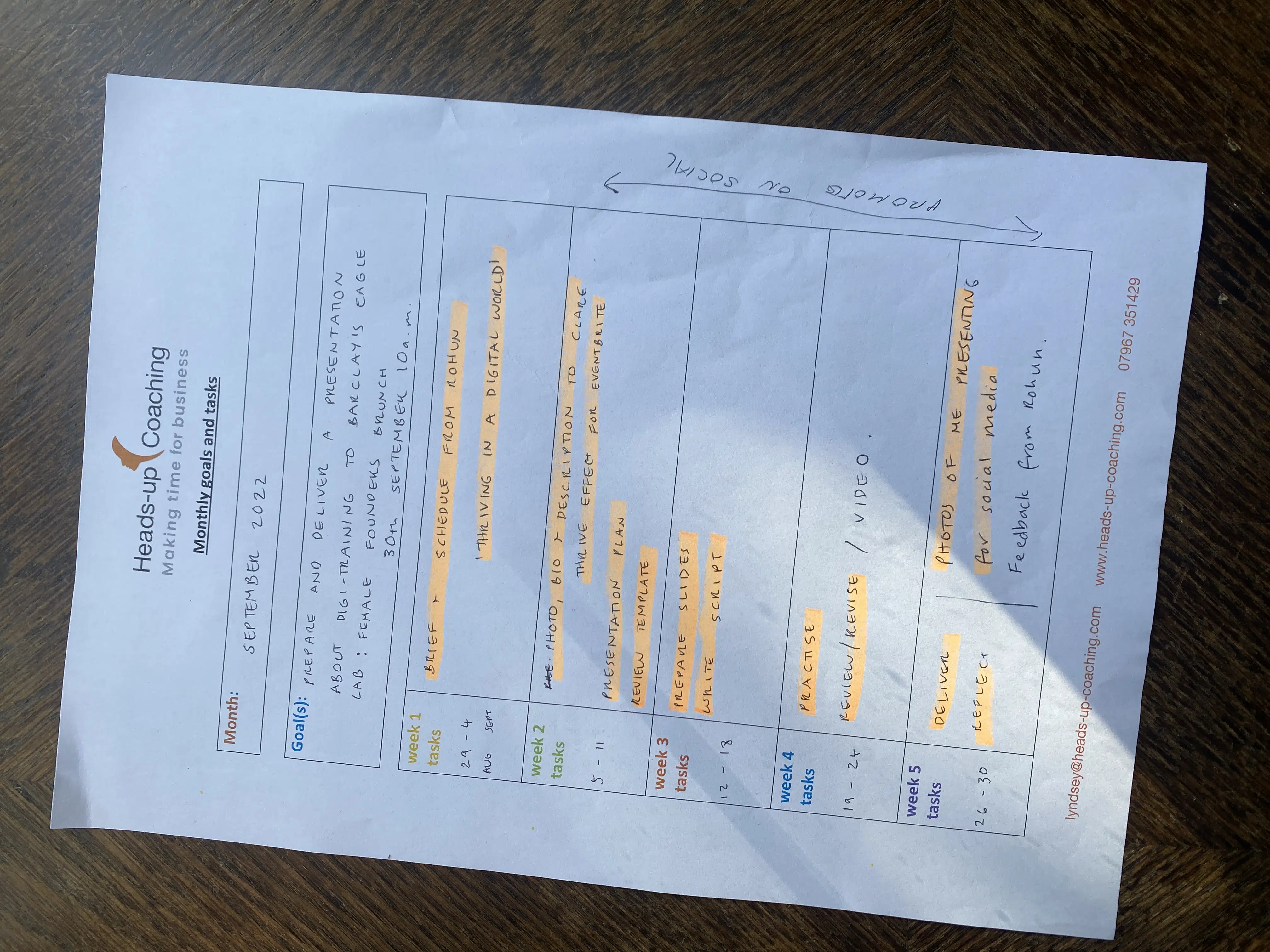
Schedule to prepare presentation
Step 2: Committing to the Plan
As my accountability session with Lyndsey approached, I knew I had to bite the bullet. Fortunately, the organisers had provided a clear brief, so I began by outlining the structure of the presentation.
Next, I sent the plan to Cath, co-founder of digi, for feedback and ideas—particularly around the slides.
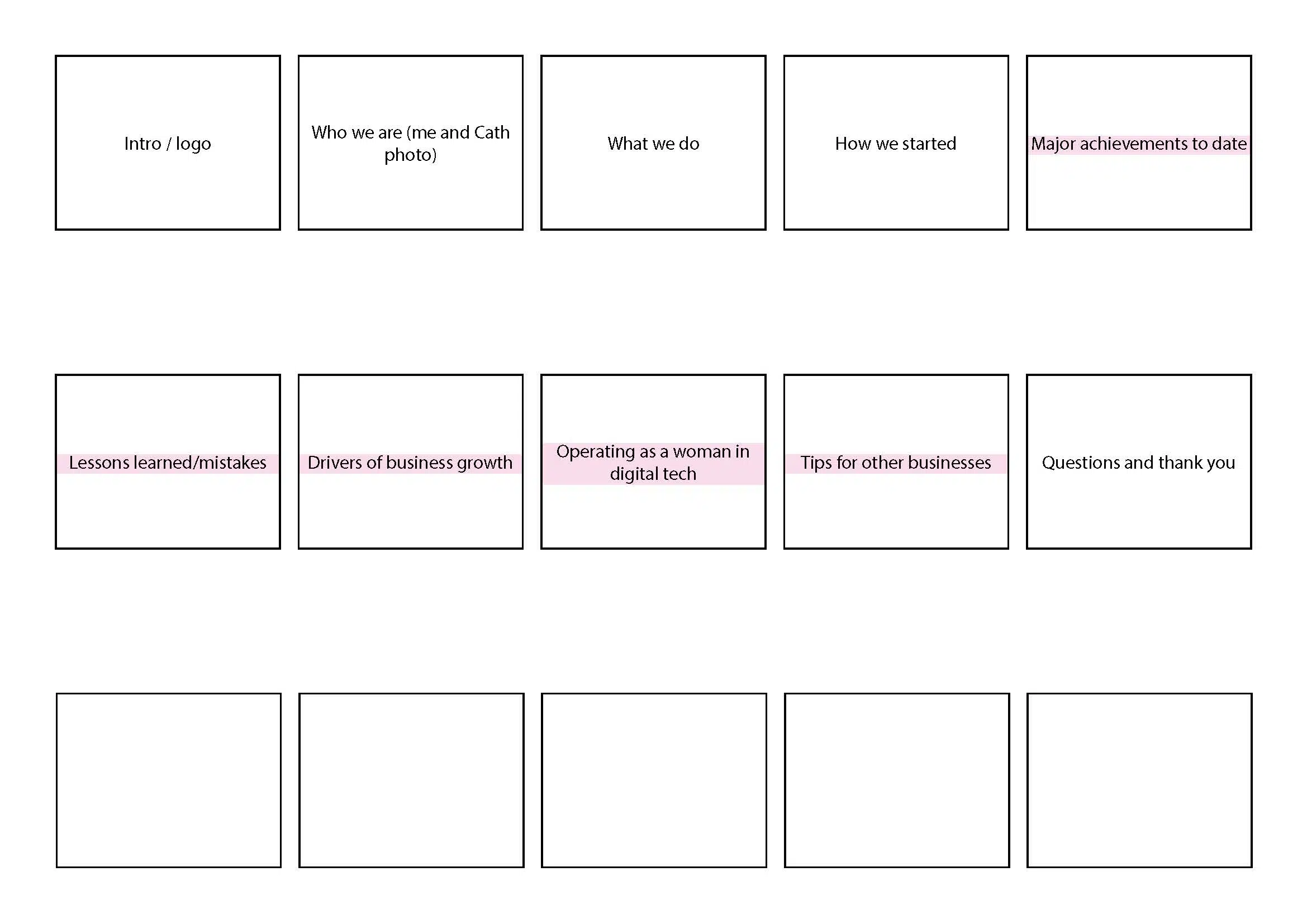
Presentation plan
Step 3: Designing the Slides
Once the structure felt solid, I moved on to design. I created a new PowerPoint template aligned with our branding. Although I already had a template, I felt it needed a refresh.
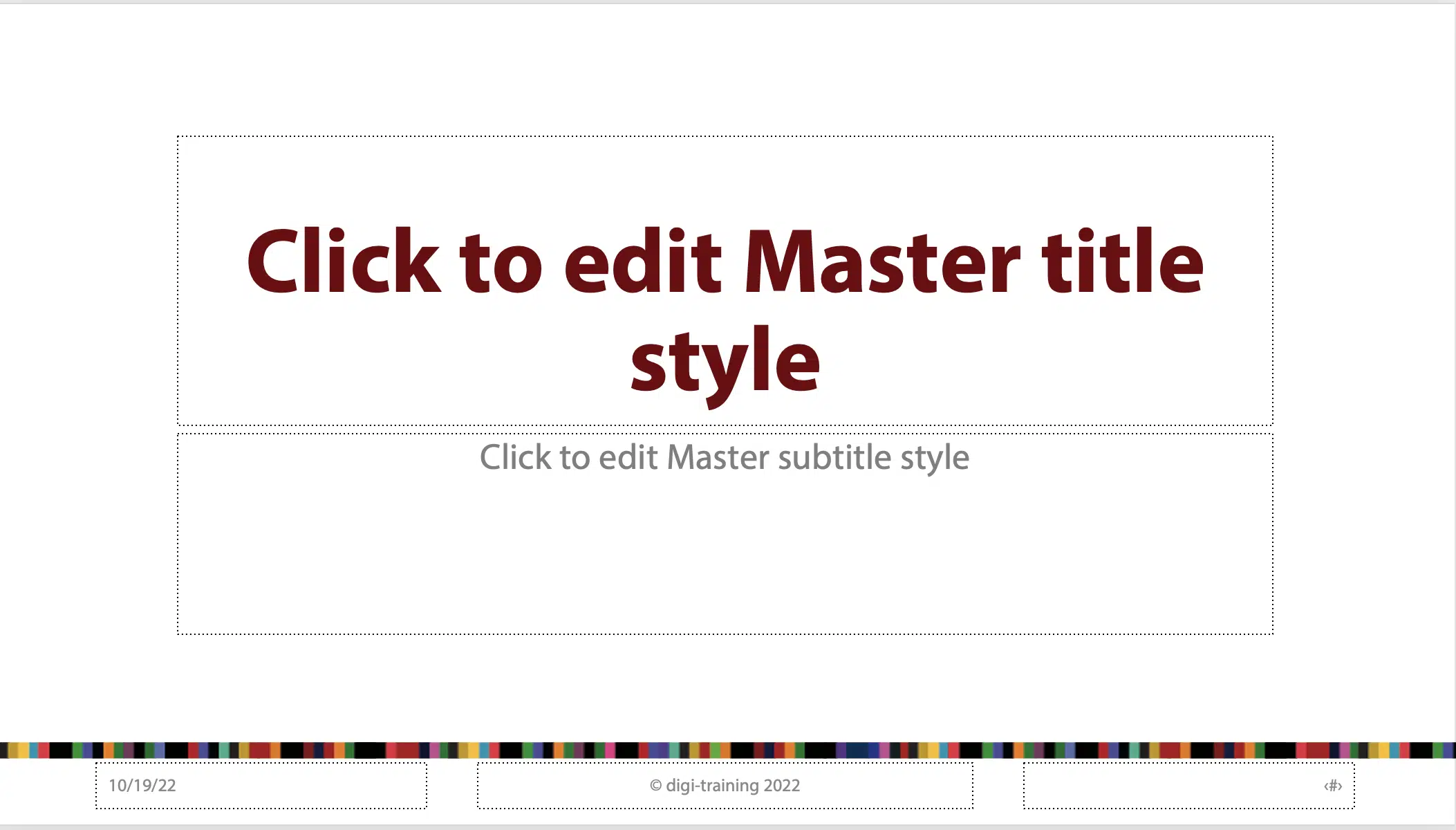
Template for PowerPoint presentation
After that, adding content was relatively quick. Because I had the plan, the brief, and Cath’s input, everything flowed more easily. Whenever I felt unsure about a slide, I skipped the heading and moved on. Gradually, the presentation took shape.
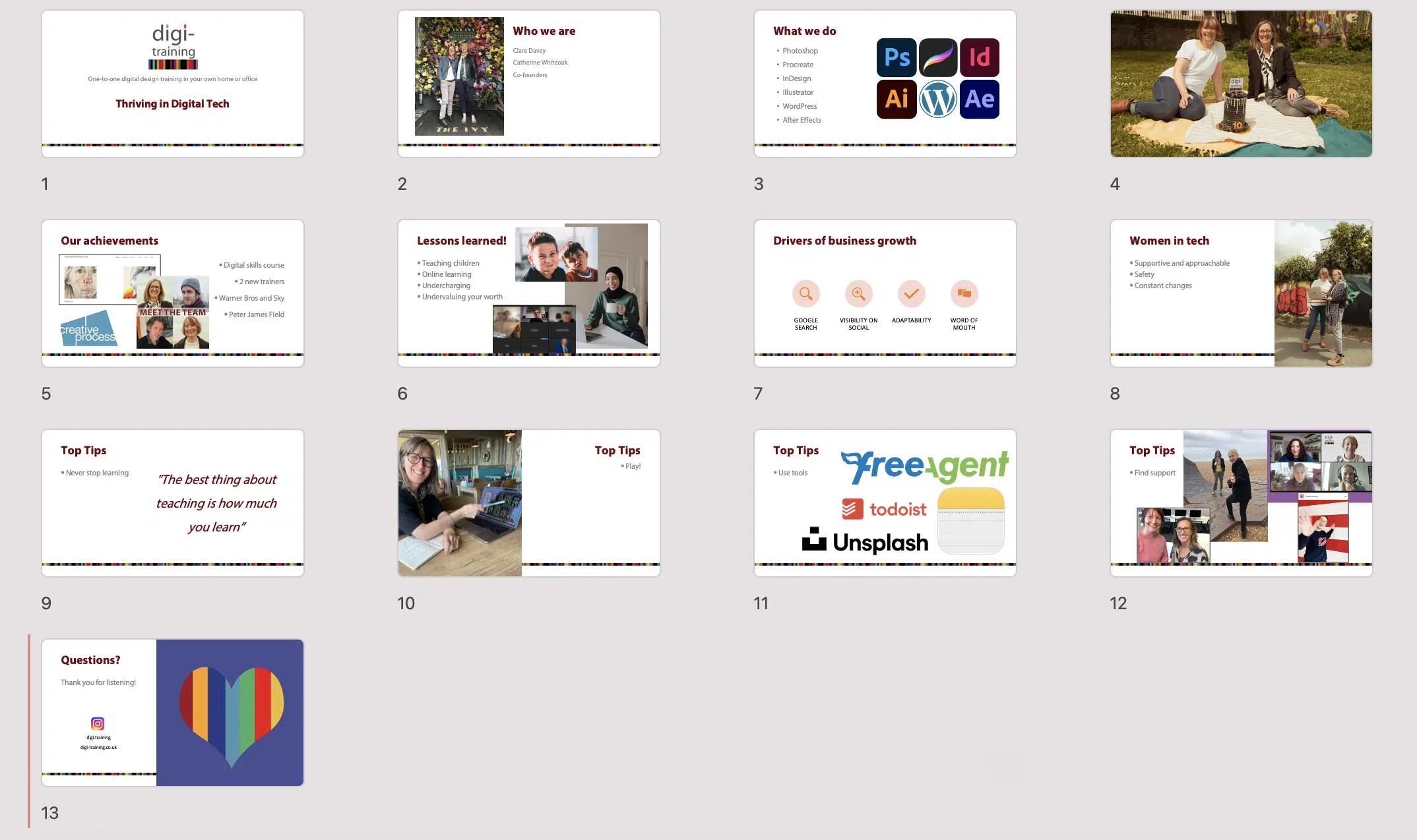
Presentation slides
Step 4: Refining and Reducing
Over the following days, I continued to add content and images as ideas came to me. Once I felt happy with the overall structure, I reviewed it with Lyndsey. She encouraged me to cut down the text on the slides.
As a result, I moved extra detail into the notes section and refined several headings. I also revisited the deck with Cath during a Zoom call to talk through the flow.
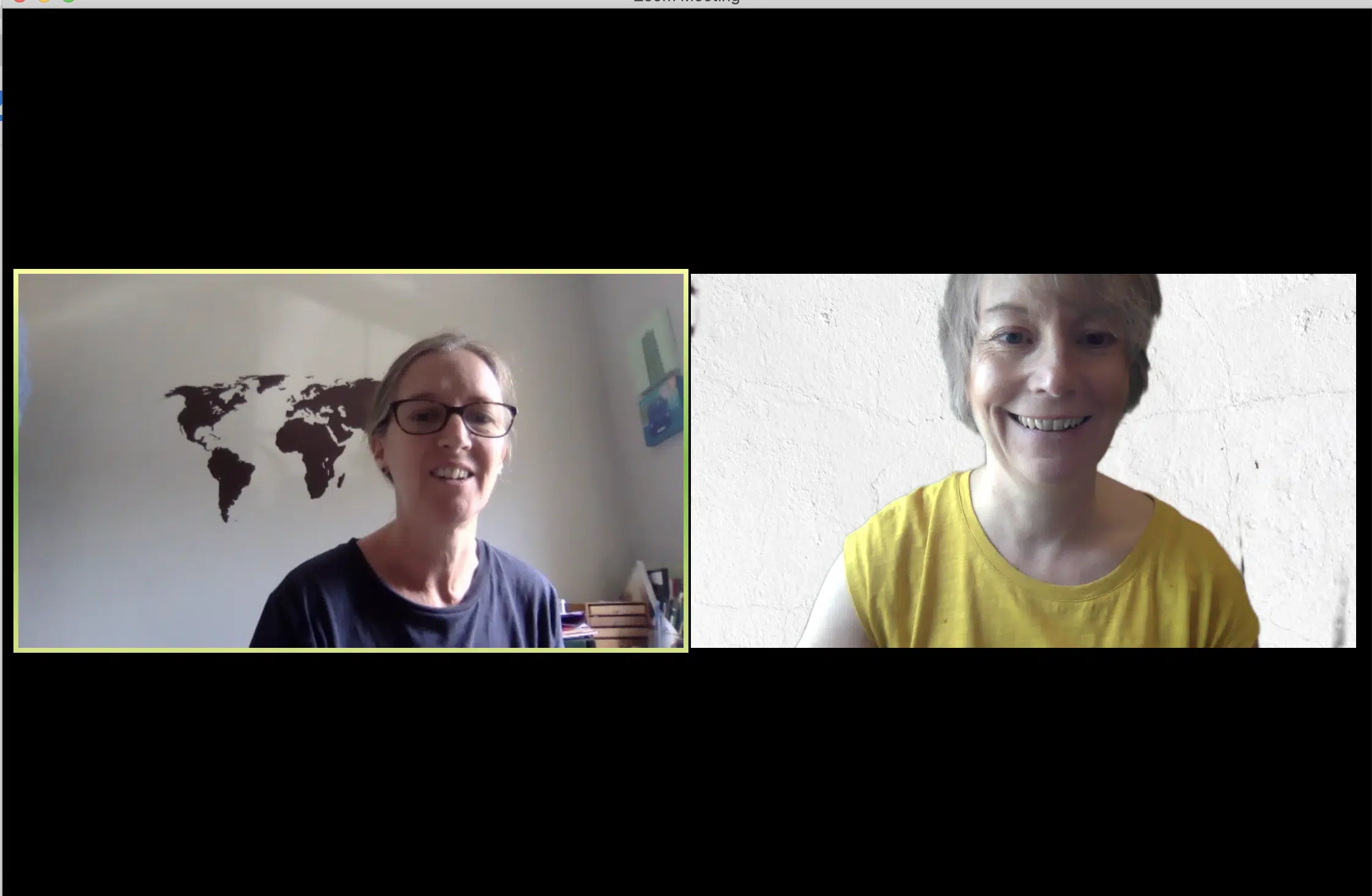
Cath and Clare on Zoom
Step 5: Practising (A Lot)
Next, I practised using PowerPoint’s timer to make sure I stayed within the time specified in the brief. I then wrote out my script by hand and dictated it into Word using the dictation tool—game changer! This gave me both practice and a digital version of my talk.
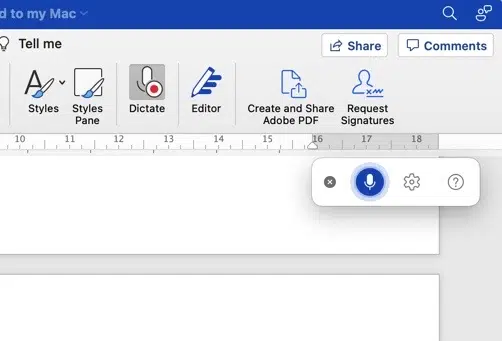
Using the dictate tool in Word
After that, I practised again using PowerPoint’s Speaker Coach—without reading from the script. This tool provided invaluable feedback on filler words, pace, and tone.
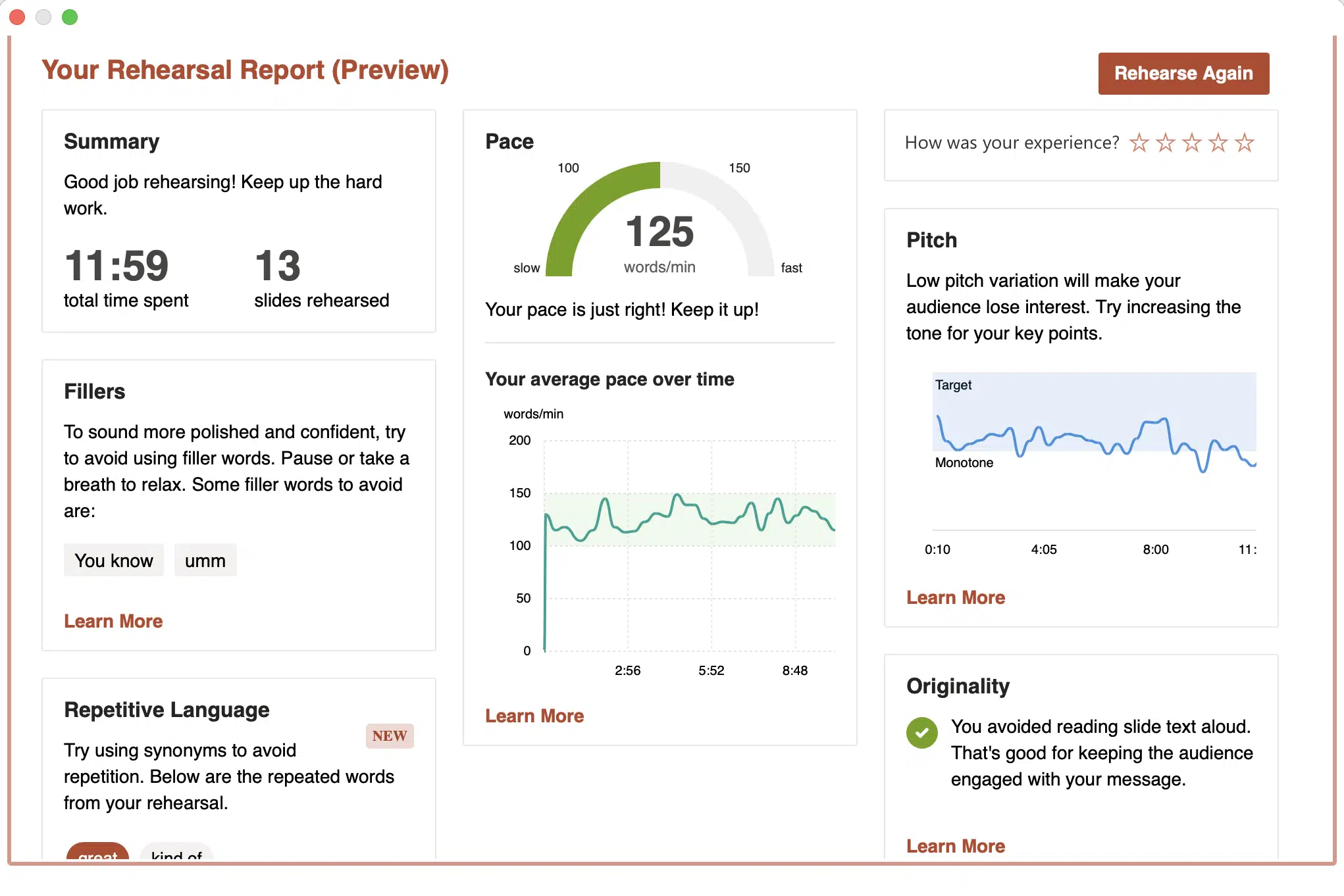
Speaker coach report in PowerPoint
Finally, I created cue cards with bullet-point headings to use as prompts during the presentation.

Cue cards for presentation
Step 6: Preparing for the Day
I also spent time thinking about what to wear. Feeling confident, comfortable, and professional really matters. After consulting a friend and narrowing down my options, I made the final choice—luckily avoiding the black spotty dress, as the other speaker turned up wearing it!
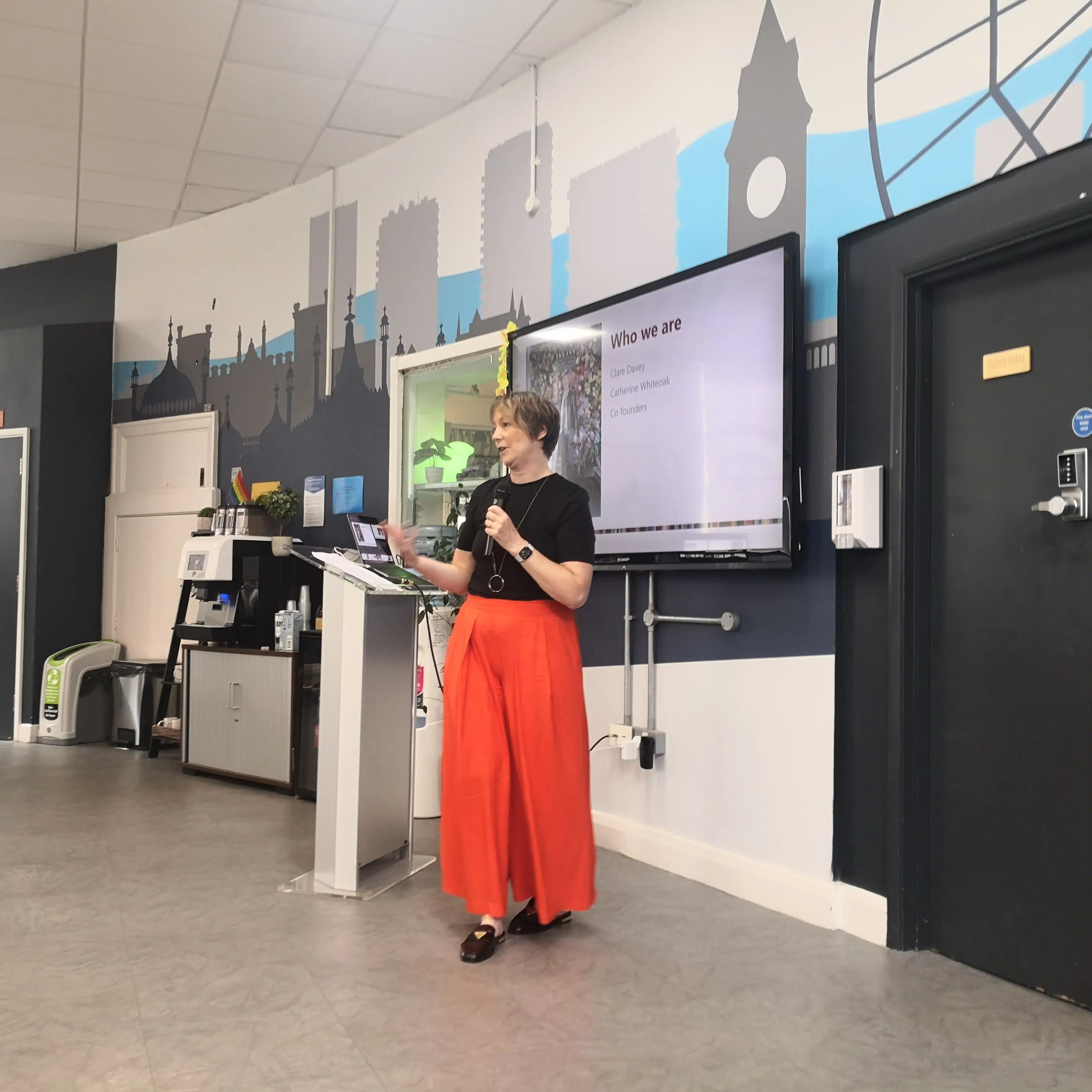
The chosen outfit!
On the day itself, I took both my printed script and cue cards with me. I kept telling myself, “You’re not going to read from this.” Still, I took them up to the lectern as a comfort blanket.
On the Day
I won’t pretend I wasn’t nervous. However, chatting with the organisers and the other speaker beforehand helped. Once I started speaking, everything settled.
The audience feedback was positive. I noticed nodding heads at key moments and received some excellent questions at the end.
Presentation Top Tips
Based on this experience, here are my key takeaways:
- Follow the brief
- Create a clear plan
- Design a PowerPoint template
- Give yourself plenty of time
- Start with the easy slides
- Find your images early
- Get feedback
- Use PowerPoint’s practice tools
- Cut down slide text
- Practise again
- Video yourself
- Write the script
- Then ditch the script
- Use cue cards or the notes section
Over to You
Have you been asked to give a presentation recently? What are your top tips?
Share them in the comments below.
I’ve also recently trained someone on managing presentations on Zoom. If you’d like help, please get in touch.
How we can help
Need help or training with your digital skills?
Contact us today for a FREE consultation to discuss your training needs.
Recent Comments